

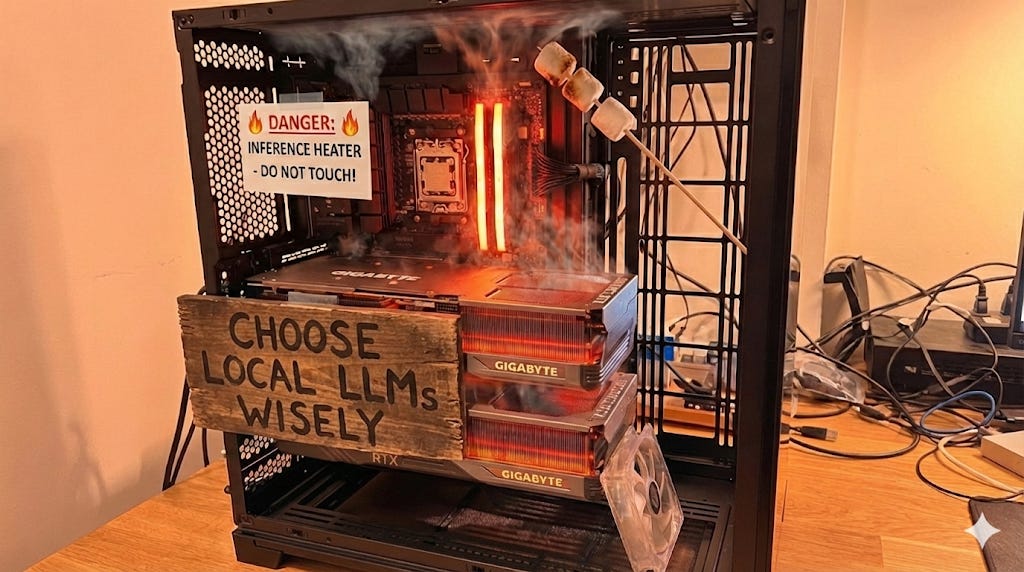
Qwen 3 235B? Even with 48GB of combined VRAM it choked. DeepSeek R1 full? Sure, if you don’t mind watching paint dry between responses.
Sound familiar?
Here is why you should consider local LLMs
The AI Monopoly Problem. What To Do
·Three years ago, the US controlled 25% of global AI computing power. Today? 74%. Meanwhile, countries like Kazakhstan, Vietnam, the UAE, and Bhutan sit on “thousands of GPUs” facing export quotas of 20,000-50,000 chips maximum — while OpenAI alone runs roughly 1 million GPUs

Here’s the thing. Most people pick local models the same way. They read a Reddit thread or X’s clickbait posts, grab whatever has the most upvotes, and pray it fits. No math, no hardware check. Just vibes and hope.
I got tired of this. So I found a tool that does the math for you.
The problem
Think about it. Running LLMs locally is a hardware puzzle. You need to match model size, quantization level, and your actual VRAM. Not what the spec sheet says, but what’s available after your OS and apps eat their share.
A 70B model at Q4_K_M quantization needs roughly 40GB. Even my dual 4090 setup with 48GB VRAM total can’t always keep it fully loaded; some layers spill into system RAM. Speed drops 5-10x the moment that happens. You turn a fast inference machine into a space heater.
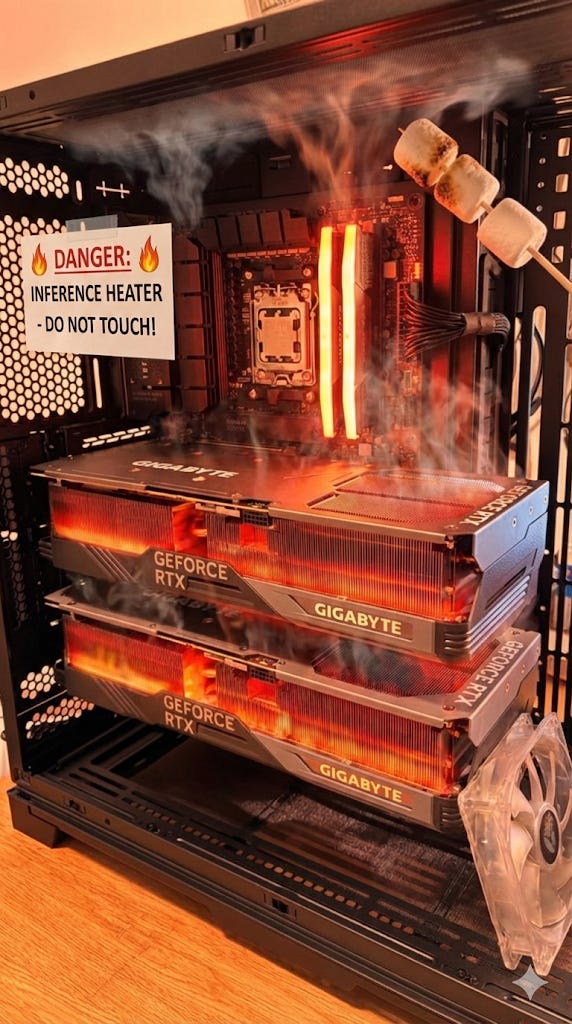
I kept hitting this wall. So I searched and found LLM Checker, a CLI that scans your hardware and tells you which models will actually run well.
How it works
One command.
llm-checker checkThat’s it.
The tool detects your GPU (NVIDIA, AMD, Apple Metal, Intel Arc), counts your VRAM, checks CPU cores, and measures available RAM. Then it scores 35+ models across four dimensions. Quality: how good is the model family, how many parameters, what does quantization cost you. Speed: how many tokens per second on your specific backend. Fit: does the model actually use your memory well or waste half of it. Context: can your hardware support the context window you need.
Each use case gets different weights. Coding models prioritize quality and context. Chat models lean toward speed. Reasoning models balance quality with fit.
Honestly, the math behind this is not complicated. Q4_K_M quantization runs about 0.58 bytes per parameter. A 7B model needs ~5GB. A 32B model needs ~19GB. But nobody does this calculation before downloading 40GB files. They just hit “pull” and hope for the best.
Why I actually use this
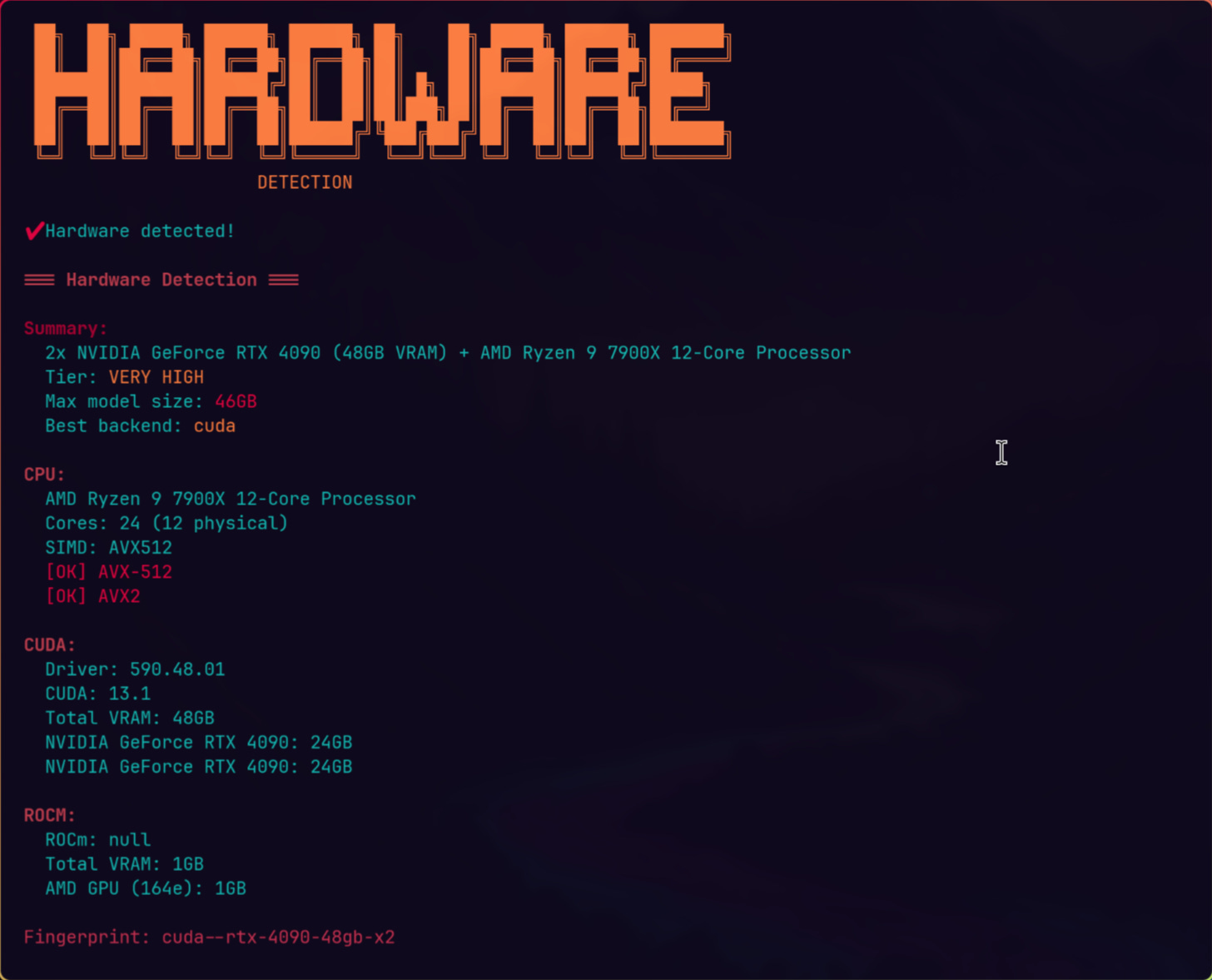
My workstation is a Ryzen 9 7900X with dual RTX 4090s and 128GB RAM. The tool detected it as “VERY HIGH” tier with 48GB VRAM across CUDA, max model size 46GB. That fingerprint alone tells me exactly where the ceiling is.
Before LLM Checker, I maintained a spreadsheet. Updated it manually. Got it wrong half the time because quantization math is tedious when you’re tracking 30+ models across different quantization levels. This drove me crazy. Even with 48GB VRAM I still need to know which 70B models fit fully in VRAM and which spill into my 128GB system RAM.
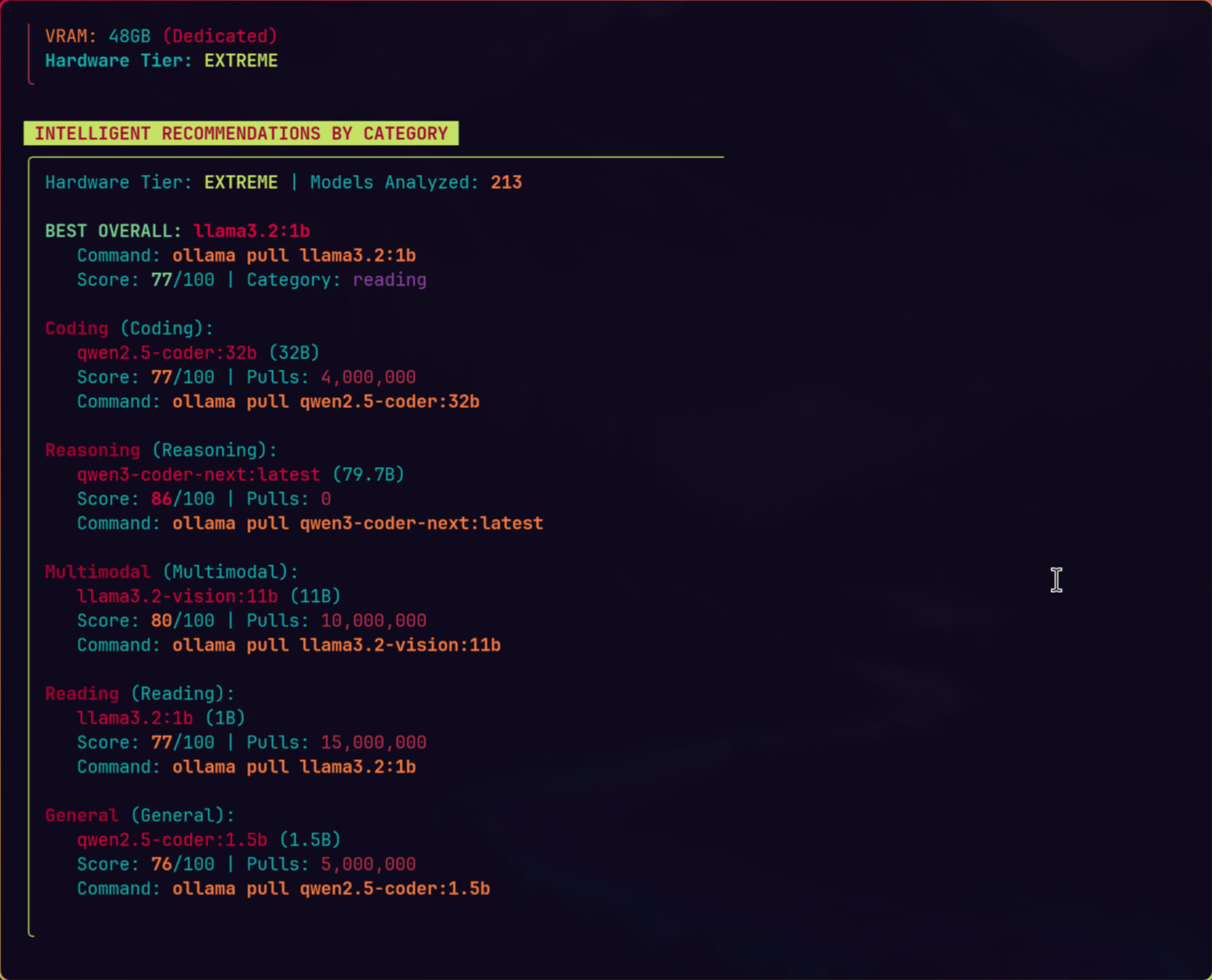
Now I run llm-checker recommend coding and get a ranked list in seconds. The tool even generates Ollama pull commands. No spreadsheet, no downloading a 40GB model just to find out half of it runs from RAM at a tenth of the speed.
The part that surprised me
What surprised me was the MCP integration. The tool plugs into Claude Code as an MCP server. One command:
claude mcp add llm-checker -- llm-checker-mcpNow Claude can check your hardware, compare models, and suggest configurations mid-conversation. I didn’t expect this to be useful until I caught myself asking “which model should I use for this coding task on this machine?” during actual work sessions. Having the answer without switching terminals saves more time than I’d admit.
What I’d change
The model catalog is curated, not exhaustive. 35+ models are solid, but new releases drop weekly. The sync command pulls fresh data from Ollama’s registry, but it requires an extra dependency (sql.js). Minor friction. Worth it if you want the latest models scored automatically.
Plus, the tool assumes Ollama as your runtime. If you run llama.cpp directly or use vLLM, you’ll need to adjust. Not a dealbreaker, but worth knowing.
Bottom line
Stop guessing which models fit your hardware. The math exists. Someone packaged it into a tool that takes 30 seconds to install and 5 seconds to run.
npm install -g llm-checker
llm-checker check
Two commands. You’ll know what your machine can handle and stop wasting bandwidth on models that won’t perform. Pick models for your actual use case instead of whatever Reddit liked last week.
From what I’ve seen, most people running local LLMs leave 30-40% performance on the table by picking the wrong model-quantization combo for their hardware. Fix that first. Everything else gets easier.
Excellent, very helpful. Thank you!